<?xml version="1.0" encoding="UTF-8"?>
<feed xmlns="http://www.w3.org/2005/Atom">
  <title><![CDATA[Jake McCrary's articles on keyboard]]></title>
  <link href="https://jakemccrary.com/atom.xml" rel="self"/>
  <link href="https://jakemccrary.com/"/>
  <updated>2026-03-14T17:06:03+00:00</updated>
  <id>https://jakemccrary.com/</id>
  <author>
    <name><![CDATA[Jake McCrary]]></name>
  </author>
  <entry>
    <id>https://jakemccrary.com/blog/2019/10/12/building-an-atreus-keyboard/index.html</id>
    <link href="https://jakemccrary.com/blog/2019/10/12/building-an-atreus-keyboard/index.html"/>
    <title><![CDATA[Building an Atreus keyboard]]></title>
    <updated>2019-10-12T23:59:59+00:00</updated>
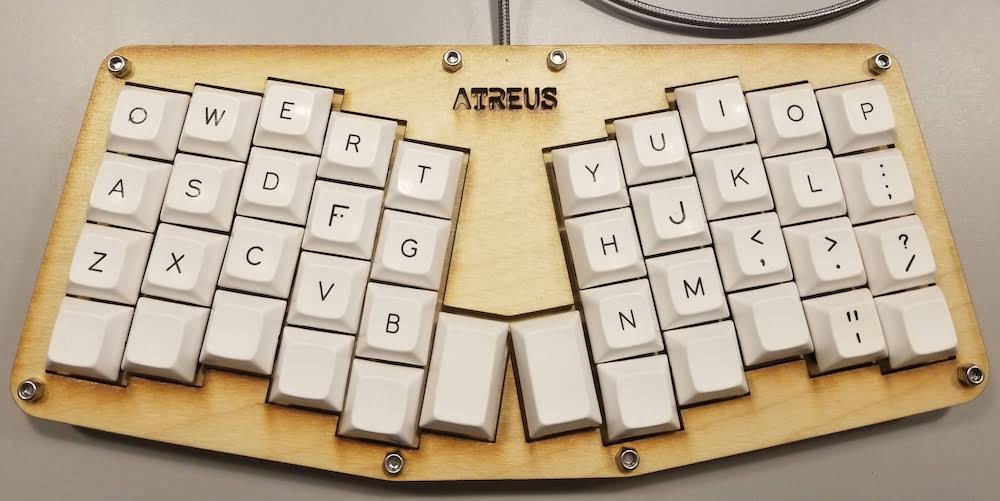
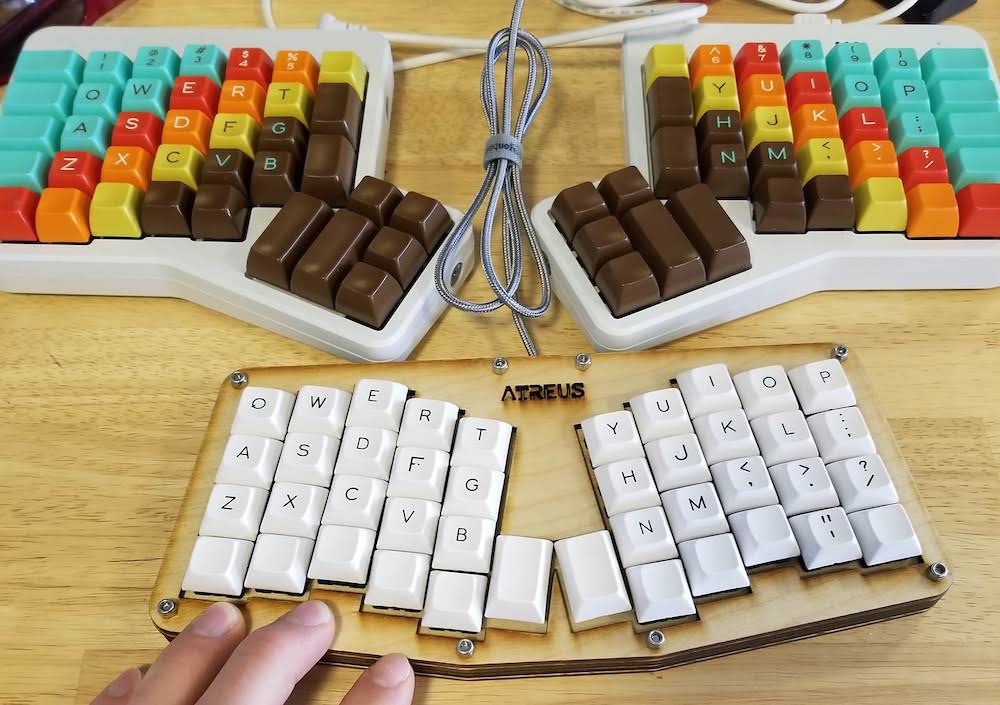
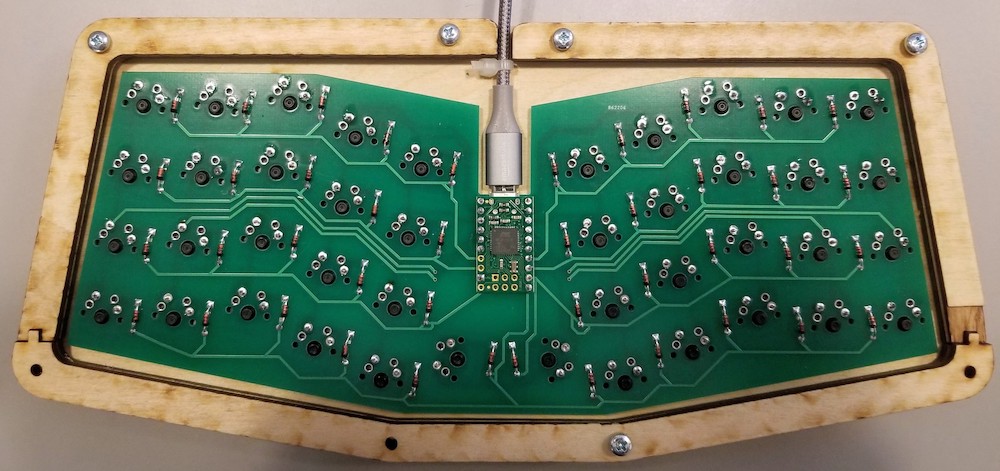
    <content type="html"><![CDATA[<div><p>I recently built an <a href="https://atreus.technomancy.us">Atreus keyboard</a>. This keyboard is an extremely small keyboard with only 42 keys. Below is the photo of my result.</p><p><img alt="My completed Atreus keyboard" src="/images/atreus/atreus-done.jpg" /></p><p>As you can see, it has a split layout and the keys are aligned vertically and staggered. Thanks to using Ergodox keyboards since 2014, I&apos;m very used to this key layout and find it superior to traditional keyboards.</p><p>The keyboard is very small. To give you an idea of how small it is, here is a photo of it next to one of my Ergodox keyboards and with a bit of my fingers in the shot.</p><p><img alt="Atreus size comparison" src="/images/atreus/atreus-with-ergodox.jpg" /></p><p>Building the keyboard was pretty straight forward. The included instructions are thorough and include plenty of photos. All of the components are through-hole so the soldering is not difficult. This would be a good first keyboard project.</p><p>I already had USB cable, key switches, key caps, and a micro-controller so I purchased the partial kit from Phil. It came with everything else, except for something to coat the wood, that you need to build the keyboard. I wanted to connect the keyboard to USB C ports, so I used a <a href="https://www.amazon.com/gp/product/B07CWDYP18">micro to USB C cable</a>.</p><p>I enjoyed the color of the laser cut wood and appreciated the burn marks. I didn&apos;t want to lose the color or burns so I coated the wood with a water based clear polyurethane with a satin finish. This was probably the most difficult part of the build, and it was pretty easy, simply because I lack experience finishing wood.</p><p>When reading other build logs I noticed that someone else put a zip tie on their USB cable to help prevent it from tugging on the micro-controller. I have no idea how helpful this is but it seemed like a good thing to do so I also did it. To do this you basically just wrap the cable with a zip tie and cram it against the case so that the zip tie prevents tugging on the micro-controller. You can see it in the picture below.</p><p><img alt="My completed Atreus keyboard" src="/images/atreus/atreus-inside-zip-tie.jpg" /></p><p>I&apos;ve only been typing on the keyboard for basically this blog post but I&apos;ve already found myself adapting to it pretty quickly. I don&apos;t intend for it to replace my Ergodox for normal usage but I think it will be a great portable keyboard.</p><p>Overall it was a fun project and I&apos;m glad I did it. I look forward to customizing the firmware to make the key layout fit my usage.</p></div>]]></content>
  </entry>
  <entry>
    <id>https://jakemccrary.com/blog/2019/08/15/switching-my-ergodox-to-qmk-firmware/index.html</id>
    <link href="https://jakemccrary.com/blog/2019/08/15/switching-my-ergodox-to-qmk-firmware/index.html"/>
    <title><![CDATA[Switching my Ergodox to QMK firmware]]></title>
    <updated>2019-08-15T23:59:59+00:00</updated>
    <content type="html"><![CDATA[<div><p>Last fall I started to work in an office again. I&apos;ve used a hand-built Ergodox for years now and really prefer working on it. This meant I needed another ergodox for the office. Luckily, now you don&apos;t have to build your own. I bought an <a href="https://ergodox-ez.com">Ergodox EZ</a><a href="#fn-1" id="fnref1"><sup>1</sup></a>.</p><p>The Ergodox EZ uses the <a href="https://github.com/qmk/qmk_firmware">QMK</a> firmware. This has a lot of fancier options than the firmware I had been using on my hand-built ergodox.</p><p>This mostly didn&apos;t matter and I just configured the Ergodox EZ to match my original Ergodox&apos;s layout. Then I started a new job and found myself programming in Scala using IntelliJ IDEA.</p><p>Shockingly, after not using IntelliJ for years, I still remembered many of the keyboard shortcuts. This was great! Unfortunately, in my years since last using IntelliJ, I created some conflicting keyboard shortcuts for managing my window layout. These were mostly shortcuts that involved holding Command + Alt and pushing an arrow key. Luckily, the QMK firmware supports a <em>Meh</em> key.</p><p>What is the <em>Meh</em> key? It is a key that presses Control + Alt + Shift all at the same time.</p><p>This is great for setting up shortcuts that don&apos;t conflict with ones found in most normal programs. This let me <a href="https://github.com/jakemcc/cljs-phoenix/commit/fa2186589d99a4763c7bf79e1f795cb910063a4e">change my window manger</a> shortcuts to use the <em>Meh</em> key and I was then conflict free.</p><p>I can&apos;t handle having different shortcuts across different machines with the same OS, so I needed to needed to update my original Ergodox to use the QMK firmware so I could also have a <em>Meh</em> key at home. Luckily, the QMK firmware also works on it and, maybe even more luckily, the Ergodox EZ firmware just works with my original Ergodox.</p><p>This actually means I can simply take the compiled Ergodox EZ firmware and flash it straight to my Ergodox. Any time I&apos;ve done this the keyboard keeps working.</p><p>Unfortunately, the LEDs in my original Ergodox are mostly hidden by non-translucent keys. These LEDs indicate when I&apos;m not main layer and I find them really useful. I only have a single translucent keycap and would prefer only that LED to be used.</p><p>Here are the steps I took to make that change.</p><ol><li>Use the <a href="https://config.qmk.fm/#/ergodox_ez/LAYOUT_ergodox">graphical QMK Configurator</a> to visually configure my keyboard layout. In the <strong>Keymap Name</strong> field, put <code>jakemcc</code>.</li><li>Click the <strong>Compile</strong> button in the above configurator.</li><li>Download the full source.</li><li>Unzip the source and edit <code>qmk_firmware/keyboards/ergodox_ez/keymaps/jakemcc/keymap.c</code> to include snippet of code below this list.</li><li>In <code>qmk_firmware</code> run <code>make ergodox_ez:jakemcc</code>.</li><li>Find <code>ergodox_ez_jakemcc.hex</code> and flash my original Ergodox.</li></ol><pre><code class="language-c">uint32_t layer_state_set_user(uint32_t state) {
  if (biton32(state) == 0) {
    ergodox_right_led_1_off();
  } else {
    ergodox_right_led_1_on();
  }
  return state;
}
</code></pre><p>This snippet gets added to the bottom of the <code>keymap.c</code>. It only turns on led 1, which is the one under my translucent key, whenever my keyboard isn&apos;t on layer 0.</p><p>Now, I can use the fancy <em>Meh</em> key to be conflict free and easily tell when I&apos;m not on my main layer. This is wonderful.</p><ol class="footnotes"><li class="footnote" id="fn-1"><p>I bought one with Cherry MX Clear switches. I&apos;ve since switched them to Cherry MX Browns. The clears were too firm for me. I did not get Cherry MX Blues because I didn&apos;t want my fellow coworkers to be annoyed by the glorious clickty-clack of those switches.<a href="#fnref1">↩</a></p></li></ol></div>]]></content>
  </entry>
  <entry>
    <id>https://jakemccrary.com/blog/2014/09/07/ergodox-turn-on-led-when-not-on-the-main-layer/index.html</id>
    <link href="https://jakemccrary.com/blog/2014/09/07/ergodox-turn-on-led-when-not-on-the-main-layer/index.html"/>
    <title><![CDATA[ErgoDox: Turn on an LED When Not on the Main Layer]]></title>
    <updated>2014-09-07T23:59:59+00:00</updated>
    <content type="html"><![CDATA[<div><p>The <a href="http://jakemccrary.com/blog/2014/07/27/building-the-ergodox-keyboard/">ErgoDox</a> is a great keyboard. One its appeals is that you can build your own firmware. This makes it possible to rearrange the keys however you want and tweak other functionality. The firmware is fairly advanced and allows you to have multiple layers to your keyboard.</p><p>Multiple layers allow the ErgoDox to have fewer physical keys than traditional keyboards. How often do you use an F key? If you are like me the answer is almost never. Why bother having a dedicated key?</p><p>Another benefit of multiple layers is that your keyboard is multiple keyboards in one. Do you use the Dvorak layout and your roommate use Qwerty? Program both a Dvorak layer and a Qwerty layer into your keyboard and switch between them with the push of a button.</p><p>The only downside I&apos;ve noticed of multiple layers is that I&apos;ll switch between them by accident. This is frustrating as all of a sudden your keyboard works differently and there is no indication that you are on a different layer.</p><p>The ErgoDox has a <a href="https://github.com/benblazak/ergodox-firmware/blob/513b82d585fdc7175db736163340af3ed6c6f38b/src/main.c#L124-L133">few LEDs</a> in it that I have never used. I don&apos;t even have the needed keys as part of my keyboard layout (Caps lock? Who uses caps lock? I don&apos;t need to shout that often). I decided to repurpose the num lock LED as an indicator that I&apos;m off the main layer.</p><p>This was a straight forward change. In the firmware there is a <a href="https://github.com/benblazak/ergodox-firmware/blob/513b82d585fdc7175db736163340af3ed6c6f38b/src/main.c#L171">variable</a> that holds what keyboard layer is active. All I had to do to get the num lock LED on when I changed layers was to move the <code>layers_head</code> variable higher in <code>main.c</code> and then change the conditional to turn on the num lock LED when <code>layers_head != 0</code>. <a href="https://github.com/jakemcc/ergodox-firmware/commit/383f16a3f091b4e2dd031d098007c4289cc1a261">This</a> is the commit that does this change. It could have been done as a three line change.</p><p>I highly recommend making this change. Now I just need to find a transparent DSA keycaps so I can see the LED easier.</p></div>]]></content>
  </entry>
  <entry>
    <id>https://jakemccrary.com/blog/2014/07/27/building-the-ergodox-keyboard/index.html</id>
    <link href="https://jakemccrary.com/blog/2014/07/27/building-the-ergodox-keyboard/index.html"/>
    <title><![CDATA[Building the ErgoDox Keyboard]]></title>
    <updated>2014-07-27T23:59:59+00:00</updated>
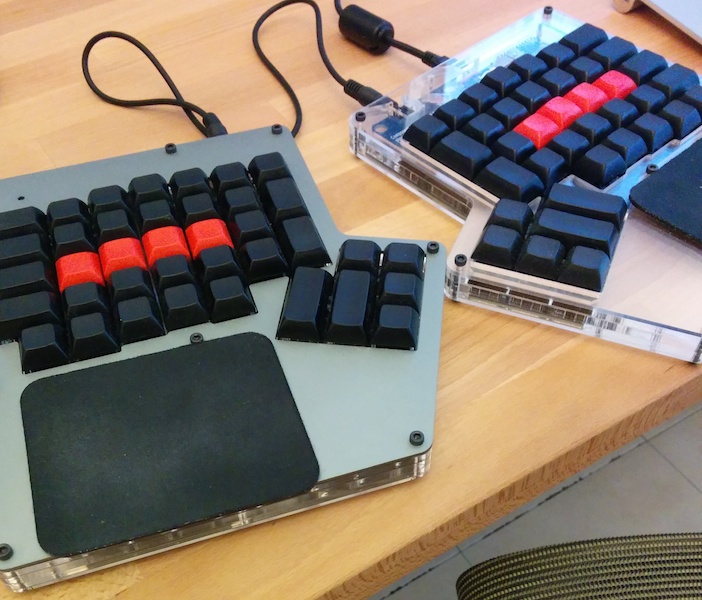
    <content type="html"><![CDATA[<div><p>Earlier this year I built an <a href="https://deskthority.net/wiki/ErgoDox">ErgoDox</a>. The ErgoDox is a split hand mechanical keyboard whose design has been released under the GNU GPLv3. There are a few standard <a href="#fn-1" id="fnref1"><sup>1</sup></a> ways of getting the parts. It basically comes down to sourcing all the parts yourself or buying a bundle from <a href="https://www.massdrop.com/buy/ergodox">Massdrop</a>. I opted to wait until Massdrop was selling them and bought a kit from them.</p><p><img alt="My ErgoDox" src="/images/my-keyboard.jpg" title="My ErgoDox" /></p><h3 id="why?">Why?</h3><ol><li>I&apos;ve used an ergonomic keyboard for years and was intrigued by the split hand design.</li><li>I wanted to try out Cherry MX key switches.</li><li>Using your thumb for more than just space bar made a lot of sense to me.</li><li>The firmware lets you have multiple layers. I thought this could be really useful.</li><li>The project sounded fun. I used to make physical devices and this seemed like a good way to do that again.</li></ol><h3 id="buying">Buying</h3><p>As mentioned earlier I bought my parts from Massdrop. In the buy I participated in I had the option of a full hand case or the traditional case and I opted for the full hand. As part of the buy I also bought additional aluminum top layers, a blank set of DSA <a href="#fn-2" id="fnref2"><sup>2</sup></a> keycaps, and Cherry MX blue key switches.</p><p>If I were doing it again I would not buy the extra aluminum top layer. I built one of my hands using the aluminum and the other with the basic acrylic top. I enjoy both the look and feel of the acrylic hand better.</p><p>I would also not buy the set of DSA keycaps from Massdrop. It was convenient and a bit cheaper to buy from them but had I known I could get different <a href="http://keyshop.pimpmykeyboard.com/products/full-keysets/dsa-blank-sets-1">colors</a> from <a href="http://www.keycapsdirect.com/">Signature Plastics</a> I would have done that.</p><p>I also bought eight &quot;deep-dish&quot; DSA keys direct from Signature Plastics. These keys feel different which lets me know when my fingers are above the home row. I&apos;d recommend doing this. You can order from <a href="http://www.keycapsdirect.com/key-capsinventory.php">this</a> page.</p><p>For key switches I bought Cherry MX Blues through Massdrop. Blues are extremely clicky. You can easily hear me typing in every room of my apartment. It is very satisfying.</p><p>After using the keyboard for about a week I also ended up buying some <a href="http://www.amazon.com/gp/product/B00897D3OQ">pads</a> for my wrists. I occasionally rest my wrists on the keyboard and the keyboard&apos;s edge would dig into me.</p><h3 id="building">Building</h3><p>I followed Massdrop&apos;s step-by-step <a href="https://www.massdrop.com/ext/ergodox/assembly.php">guide</a> and <a href="https://www.youtube.com/watch?v=x1irVrAl3Ts">this</a> YouTube video. Another great resource is the community at <a href="http://geekhack.org/index.php?topic=22780.0">GeekHack</a>. I&apos;d recommend reading and watching as much as possible before starting your build.</p><p>I built this using a cheap soldering iron I&apos;ve had for years, very thin solder, solder wick, and a multimeter. I don&apos;t know if this would have been easier with better tools or not but those got the job done.</p><p>While soldering the surface mount diodes I was in the zone and soldered a few locations that didn&apos;t actually need to be soldered. When you are soldering the diodes you should only be soldering them to the locations that have the key silk screen.</p><p>My system for minimizing errors while soldering the diodes is the following five steps.</p><ol><li>Lay down some solder on one of the pads.</li><li>Put the correct end of the diode on top of that solder, reheat and push down.</li><li>Test the connection with a multimeter.</li><li>Solder the other half of the diode.</li><li>Test the connection.</li></ol><p>I batched up the steps. I&apos;d do a whole row of the first step, then move to the second for the entire row, then do the third, etc. Being rigorous about testing every connection is important. Catching mistakes early makes it easier to fix the mistakes.</p><p>If you solder a diode on the wrong way there is a huge difference (at least for me using solder wick) between the difficulty of fixing the error when only one pad has been soldered versus two pads. I soldered more than one diode backwards and a mistake noticed after soldering only one pad was easy to fix. After soldering both pads it took serious effort.</p><p>Eventually you&apos;ll need to cut open a USB cable. I ended up removing the plastic housing using a Dremel. When soldering the wires to the USB holes I was too concerned with it looking pretty and did not leave plenty of wire. This made it harder to solder and as a result I ended up doing a poor job that resulted in a short. After desoldering and destroying another cable, but leaving more wire, I managed to do a better job. I originally noticed the short because I kept getting warnings from my computer about my USB Keyboard drawing too much power.</p><p>I&apos;ve <a href="https://www.evernote.com/shard/s68/sh/4f51c3b2-b50b-47d3-8219-ea155cf5fef5/df239167726bcebf06cc2b5101ac8e42/">annotated a copy</a> of Massdrop&apos;s instructions using Evernote. It contains the above tips inline.</p><h3 id="firmware">Firmware</h3><p>After you physically build your keyboard you need to build the firmware. There are a few different firmwares that can work and you can discover those on GeekHack. I&apos;m using a fork of what Massdrop&apos;s <a href="https://www.massdrop.com/ext/ergodox">graphical configuration</a> tool uses. It is based off <a href="https://github.com/benblazak/ergodox-firmware">benblazak/ergodox-firmware</a>.</p><p>One of the exciting things about the ErgoDox is tweaking the firmware. I took the base firmware and modified it to have media key support and <a href="https://github.com/jakemcc/ergodox-firmware/commit/383f16a3f091b4e2dd031d098007c4289cc1a261">light up the LEDs</a> when I&apos;m on any layer besides the base. Some people have added the ability to record keyboard macros and other neat features. I encourage you to take a look at the source even if you use the graphical configuration tool. I haven&apos;t explored beyond <a href="https://github.com/benblazak/ergodox-firmware">benblazak/ergodox-firmware</a> so I can&apos;t compare it to other firmwares.</p><h3 id="conclusion">Conclusion</h3><p>I really enjoy it. Building it was both fun and frustrating <a href="#fn-3" id="fnref3"><sup>3</sup></a>.</p><p>After using the keyboard for a few months I&apos;ve found that I really only use three (on each hand) of the thumb cluster keys. I also don&apos;t use the keyboard layers too often. I have three layers programmed and I always stay on the main one unless I want to hit a media key.</p><p>Would I recommend building your own ErgoDox? If you already can or are willing to learn to solder and this sounds at all interesting to you I would recommend it. The project can be frustrating but the result is great.</p><h3 id="the-future">The Future</h3><p>There is still a lot left to explore in the custom keyboard space. Even so I have no plans on leaving the ErgoDox anytime soon. In terms of improving my ErgoDox, I plan on poking around the different firmwares at some point. I&apos;d also like to explore <a href="http://geekhack.org/index.php?topic=22780.msg1405792#msg1405792">tenting</a> <a href="https://github.com/adereth/ergodox-tent">options</a>.</p><h3 id="resources">Resources</h3><ul><li><a href="http://geekhack.org/index.php?topic=22780.0">GeekHack ErgoDox thread</a></li><li><a href="http://geekhack.org/index.php?topic=40501.0">GeekHack FAQ</a> Useful for general information about keyboard topics.</li><li><a href="http://geekhack.org/index.php?topic=40501.0#post_DD">GeekHack Cherry actuation forces</a></li><li><a href="https://www.massdrop.com/buy/ergodox">Massdrop Buy</a></li><li><a href="https://www.massdrop.com/ext/ergodox">Massdrop Configuration Tool</a></li><li><a href="https://github.com/benblazak/ergodox-firmware">benblazak/ergodox-firmware</a></li><li><a href="http://geekhack.org/index.php?topic=48106.0">TMK firmware for ErgoDox</a> One of the alternative firmwares.</li></ul><ol class="footnotes"><li class="footnote" id="fn-1"><p>I feel a bit odd using the word standard to describe acquiring parts to build a keyboard.<a href="#fnref1">↩</a></p></li><li class="footnote" id="fn-2"><p><a href="http://keycapsdirect.com/key-caps.php">This</a> page has diagrams that shows the different keycap families.<a href="#fnref2">↩</a></p></li><li class="footnote" id="fn-3"><p>Those surface mount diodes are so tiny.<a href="#fnref3">↩</a></p></li></ol></div>]]></content>
  </entry>
</feed>